
If you run a service business that goes to customers (plumber, cleaner, mobile mechanic, landscaper), your Google Business Profile service area setup matters more than most owners realize. One wrong setting can turn a steady flow of calls into silence, or trigger a verification loop that eats up your week.
The tricky part is this: Google often needs a real address to verify you, but you may not want that address shown publicly (especially if it’s your home). The good news is you can usually do both, verify with a real location, then hide the address, as long as you follow Google’s rules and keep your profile consistent.
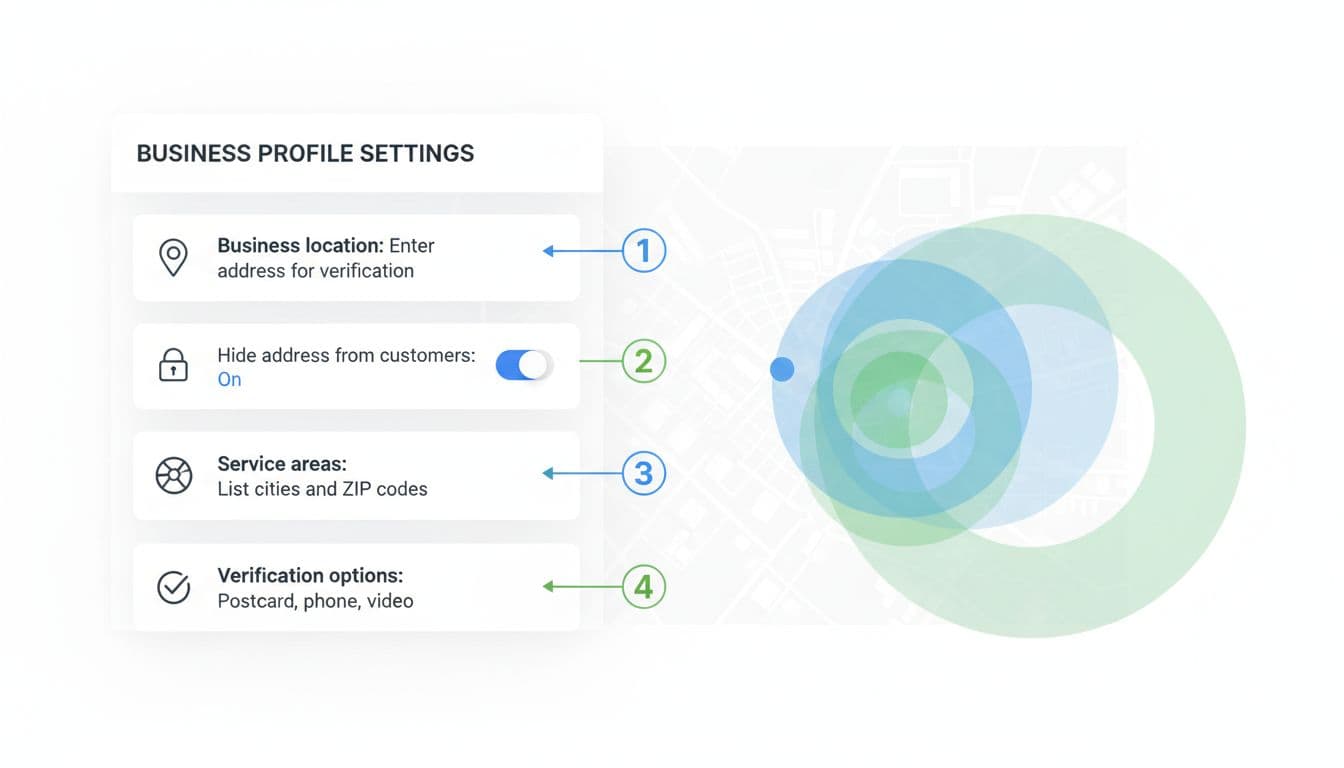
A service-area business (often called an SAB) is a business that serves customers at their location, not at a public storefront. Think of your address like a “backstage pass” for Google. Customers don’t need it, but Google often does, at least during verification.
As of January 2026, there haven’t been major rule changes for SABs, but the enforcement is still strict: use a real address, avoid P.O. boxes and virtual offices, and keep your details consistent (name, phone, category, and service areas). If you want a plain-English walkthrough of the verification process for SABs, this guide from Search Engine Land is a strong reference: how to get a service-area business verified.
Here’s the part that trips people up. Google separates:
For many SABs, the best practice is to verify using your real address, then hide it so only your service area shows. That can protect privacy and still keep you eligible.
Also, don’t overthink “service area.” It’s not a magic radius switch. It’s a signal that helps Google understand where you operate, and it affects what customers see. Google also limits service areas (commonly up to 20 entries), and it’s smart to keep them within a reasonable driving distance (often described as about a 2-hour reach).
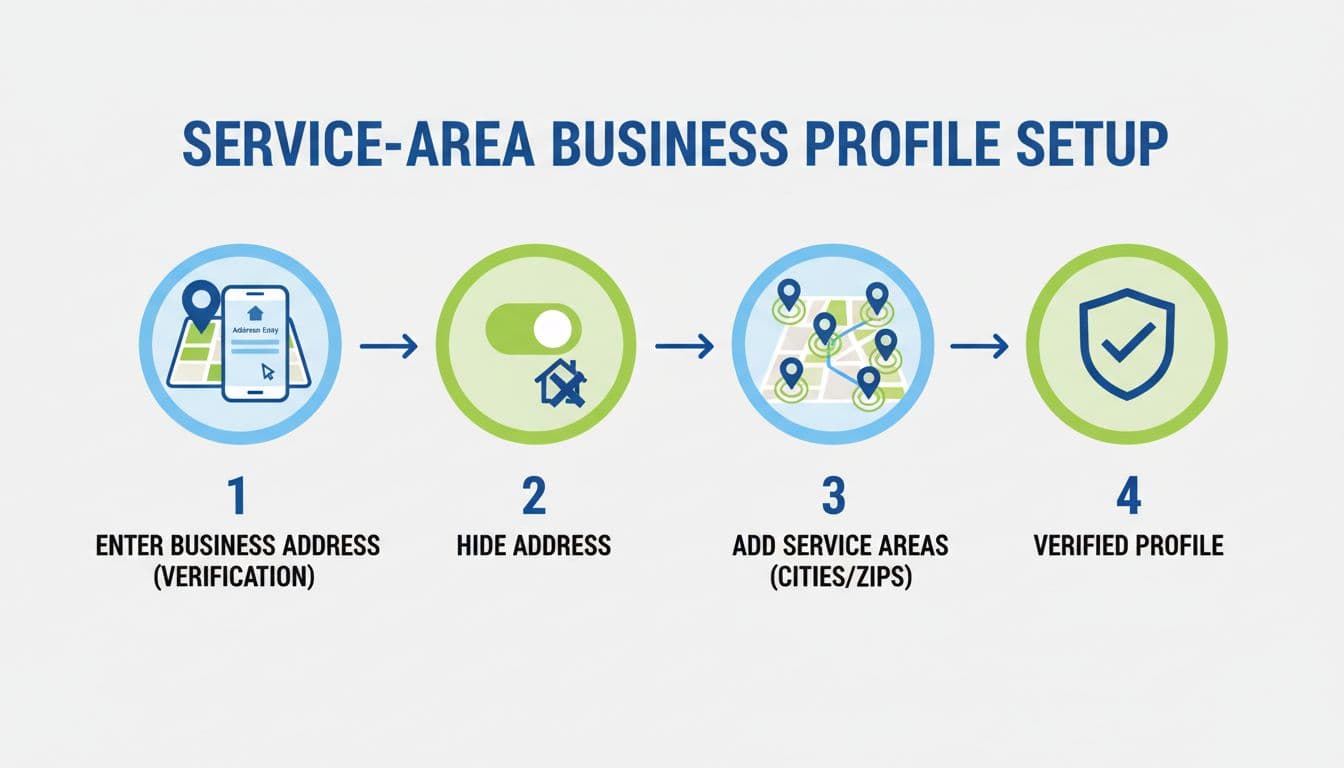
If you want to hide your address without triggering problems, follow this order. Most issues come from doing steps out of sequence.
Use the actual location where your business is based. For a home-based business, that usually means your home address. This is what supports postcard and video verification, and it’s the fastest way to avoid “not eligible” headaches.
Avoid:
Google may offer postcard, phone, email, or video verification, it varies by business and category. Take what Google offers and don’t “reset” fields while the verification is pending.
If you get video verification, treat it like a quick proof-of-existence clip. Show street signs, your vehicle branding (if you have it), tools, and anything that connects your business to the area.
Inside your profile settings (Edit profile, then Location and areas), you’ll typically find a toggle like “Show business address to customers.” Turn it off. Your address remains on file for Google, but it stops displaying publicly.
List the towns, ZIP codes, or neighborhoods you truly cover. Don’t add far-away cities just because they look profitable. It can confuse relevance and invite edits from users.
A simple way to decide: pick your core service area first, then add nearby areas where you can reliably show up on time and profit.
| Setting | What Google keeps on file | What customers see |
|---|---|---|
| Address visible | Verified address | Street address + map pin |
| Address hidden (SAB) | Verified address | Service areas (no street address) |
Want support to get this right and avoid slow trial-and-error? A good GBP setup pairs well with consistent local SEO and reporting. See Piggybank SEO pricing for Google Business Profile optimization if you’re comparing options that are built around results and accountability.
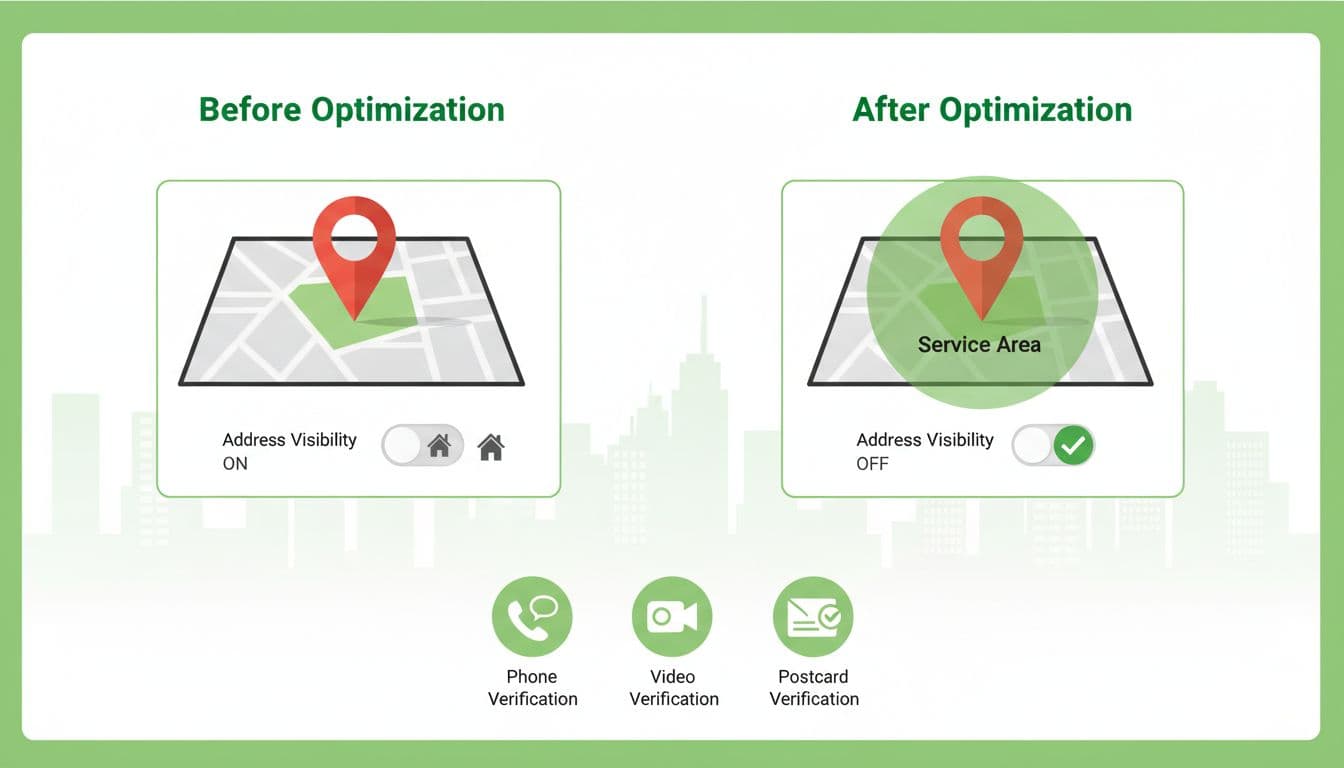
Hiding your address is allowed for SABs, but the details around it can still hurt rankings or stability if you’re sloppy. Sterling Sky has documented how hiding an address can impact visibility in some cases, which is worth knowing before you flip settings: hiding your address and ranking impact.
The bigger risk, though, is triggering re-verification. Here are the most common causes:
Frequent edits to key fields
Changing your business name, primary category, or address repeatedly makes Google suspicious. If you need to update something important, do it once, then let the profile “settle.”
Using the wrong business model for your setup
If customers can’t visit you, don’t show an address. If customers can visit you during stated hours, you should be set up as a storefront and follow signage rules. Trying to sit in the middle often ends poorly.
Multiple profiles for the same service area
One business, one profile per metro in most cases. Creating extra listings to cover nearby towns can lead to duplicates and filtering (or worse).
Service areas that don’t match reality
When your service area list looks like a spider web across the state, it signals spam. Keep it tight and believable.
Inconsistent NAP across the web
NAP is name, address, phone. Even if you hide your address in GBP, Google still compares your business details across directories, your website, and other mentions. If you recently moved, clean up old citations instead of hoping Google ignores them.
If you’re a home service business also running Local Services Ads, GBP consistency matters even more because trust signals stack. If you’re chasing the Google Guaranteed badge, check Local Service Ads management for Google Guaranteed badge for a clearer picture of what “compliant and verified” really looks like in practice.
A strong Google Business Profile service area setup comes down to one principle: be honest with Google, be clear for customers. Use a real address for verification, complete verification first, then hide the address if you don’t serve customers at your location, and list service areas you truly cover.
If you want faster progress without guessing, pair GBP work with performance-based local SEO and clean reporting. The goal isn’t just to be verified, it’s to be found, trusted, and chosen.


